 Ask Alvin (AI Chat)
Adding Tabs in the Editor
Tabs organize related content into clickable sections that share the same page space. Each tab includes a tab title and a linked content panel.
| Tool | Button | Use |
|---|---|---|
| Add Tabs |  |
Inserts a new tabs block. |
| Move Tab Left |  |
Moves the active tab left. |
| Move Tab Right |  |
Moves the active tab right. |
| Add Tab Item |  |
Adds a tab after the active tab. |
| Delete Tab Item |  |
Removes the selected tab and content panel. |
Use tabs when visitors need to compare or switch between related content groups without scrolling through all of them at once.
Inserting Tabs
Click Add Tabs in the toolbar to open the CMS Tabs dialog.
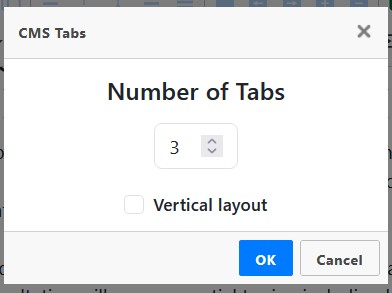
The CMS Tabs dialog controls the starting number of tabs and whether the tabs use a vertical layout.
Choose the Number of Tabs to create. The number represents the initial number of tabs and content panels.
Enable Vertical layout when tab labels should stack along the side instead of appearing horizontally across the top.
Click OK to insert the tabs. Click Cancel to close the dialog without inserting them.
Editing Tab Content
After insertion, click a tab title to edit its label. Click inside the tab content area to edit the body content.
By default, the first tab is active and each tab is labeled automatically. Rename tab titles so they clearly describe the content inside each panel.
Adding, Removing, and Reordering Tabs
When your cursor is inside a tabs block, tab item controls become active.
Use Add Tab Item to add a new tab after the active tab. The new tab becomes active.
Use Delete Tab Item to remove the selected tab and its content panel. If the final tab is deleted, the entire tabs block is removed.
Use Move Tab Left and Move Tab Right to reorder tabs. The tab label and its content panel move together.
Layout and Behavior
Only one tab is active at a time. When a visitor switches tabs, the selected tab becomes active and the others deactivate.
The active tab selected when the editor is saved and closed determines which tab is active when site visitors load the front-facing page. Before saving, select the tab that should appear first on page load.
Tabs support horizontal and vertical layouts. You can reopen the CMS Tabs dialog on an existing tabs block to switch layouts without rebuilding the tab content.
Standard keyboard undo is blocked while editing inside tabs to prevent structural corruption.
Best Practices
Use short, clear tab titles. Avoid creating too many tabs in one block.
Use vertical layout when tab labels are long or when there are enough tabs that a horizontal row becomes crowded.
Learn More
For expandable sections that stack vertically, see Adding Accordions in the Editor. For arranging tabbed content inside page layouts, see Adding and Configuring Grid Layouts. For checking structured content before publishing, see Checking Content Accessibility in the Editor.