 Ask Alvin (AI Chat)
Adding Accordions in the Editor
Accordions create expandable sections inside a page. Each accordion item includes a clickable title and a collapsible content area.
| Tool | Button | Use |
|---|---|---|
| Add Accordion |  |
Inserts a new accordion block. |
| Move Item Up |  |
Moves the current accordion item higher. |
| Move Item Down |  |
Moves the current accordion item lower. |
| Add Item |  |
Adds an accordion item after the current item. |
| Delete Item |  |
Removes the selected accordion item. |
Use accordions for FAQs, grouped content, or long pages where visitors need to scan headings before opening details.
Inserting an Accordion
Click Add Accordion in the toolbar to open the CMS Accordion dialog.
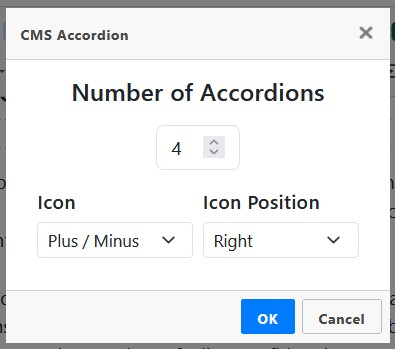
The CMS Accordion dialog controls the starting number of items, icon style, and icon position.
Choose the Number of Accordions to create. The number represents the initial number of accordion items.
Choose an Icon style:
- Plus / Minus
- Plus / Minus Circle
- Angle
- Angle Circle
- No Icon
Choose an Icon Position of Right or Left.
Click OK to insert the accordion. Click Cancel to close the dialog without inserting it.
Editing Accordion Content
After insertion, click inside an accordion title to edit the heading text. Click inside the content area to edit the body content.
Use concise, descriptive titles so visitors can understand what each section contains before expanding it.
Adding, Removing, and Reordering Items
When your cursor is inside an accordion, accordion item controls become active.
Use Add Accordion Item to add a new item after the current item.
Use Delete Accordion Item to remove the selected item. If the last remaining item is deleted, the entire accordion is removed.
Use Move Accordion Up and Move Accordion Down to reorder the selected item.
Limits and Behavior
Accordions require at least two items when created and support up to 50 items.
The open or closed state of each accordion item when the editor is saved and closed determines how the accordion appears when site visitors load the front-facing page. Before saving, open and close the accordion items so they are set the way they should appear on page load.
Accordion controls are active only when the editor is in visual mode and the cursor is inside an accordion item.
Standard keyboard undo is blocked while editing inside an accordion to prevent structural corruption.
Learn More
For tabbed content that keeps one panel visible at a time, see Adding Tabs in the Editor. For linking to sections of long pages, see Adding and Editing Links and Anchors. For accessibility review after adding structured content, see Checking Content Accessibility in the Editor.