 Ask Alvin (AI Chat)
Viewing, Filtering, Exporting, and Deleting Form Submissions
The Form Submissions view shows saved submission records for a single form.
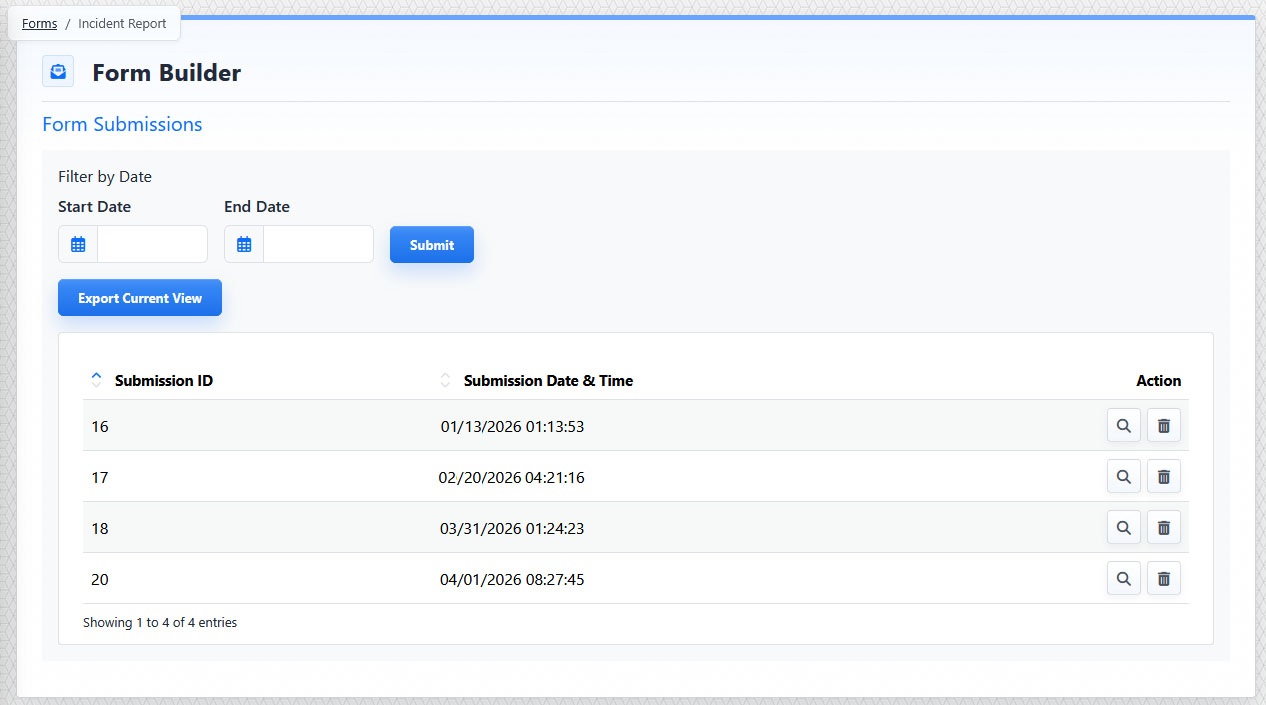
The Form Submissions view lists saved submissions and includes date filtering, export, view, and delete controls.
Open it from the Form Builder list view by clicking the form's Submissions button.
The Submissions view includes:
- Date filters
- Export Current View
- Submissions table
- View action
- Delete action
Date Filters
Use Start Date and End Date to filter submissions by date.
Start Date shows submissions from that date forward.
End Date shows submissions up to that date.
Use one or both dates to review a date range. Leave both dates blank to show all submissions.
Click Submit to apply the date filter.
Exporting Submissions
Use Export Current View to export the currently visible submission data.
The export includes submissions that match the current filter. It can include current fields as well as older stored data from fields that were removed after submissions were collected.
Viewing Submission Details
Use the View action to open the detail view for an individual submission.
The submission detail view shows the submitted values using the current form labels and order.
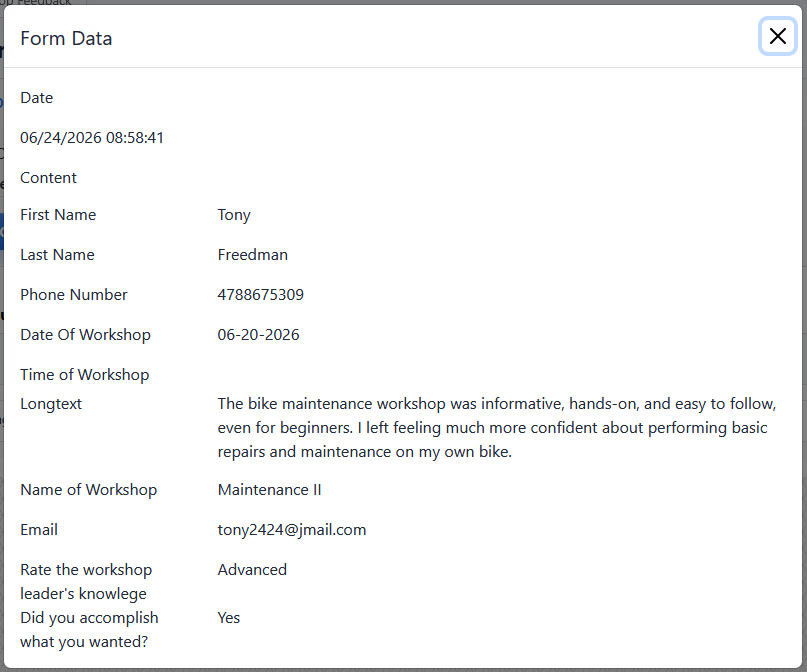
The submission detail view displays the values submitted for an individual form entry.
Deleting Submissions
Use the Delete action to delete a single submission.
To delete multiple submission records simultaneously, select one or more submissions and use Delete Selected to delete them together.
Deleting submissions permanently removes those records from the CMS and from future exports. There is no undo.
The controls you see depend on your CMS permissions. Users with restricted permissions may not be able to access all features.
Learn More
For how exported submission data is preserved after form changes, see Understanding How Form Submission Data Is Stored. For notification email behavior, see Configuring Form Notifications and Email Behavior.