 Ask Alvin (AI Chat)
Using Edit History for Content Blocks
Edit History helps you review actions made to an individual content block. It is available from the Content Options menu for a content block and is useful when you need to understand when a block changed, who changed it, or whether an earlier version should be restored.
This history is specific to content blocks. It is different from history tools used by plugins, and it is not the same process as restoring deleted content from the Recycle Bin.
Open Edit History
Open the content block's Content Options menu, then select Edit History.
The Edit History list shows the actions recorded for that block, including edits, publishes, unlocks, and other block-level actions.
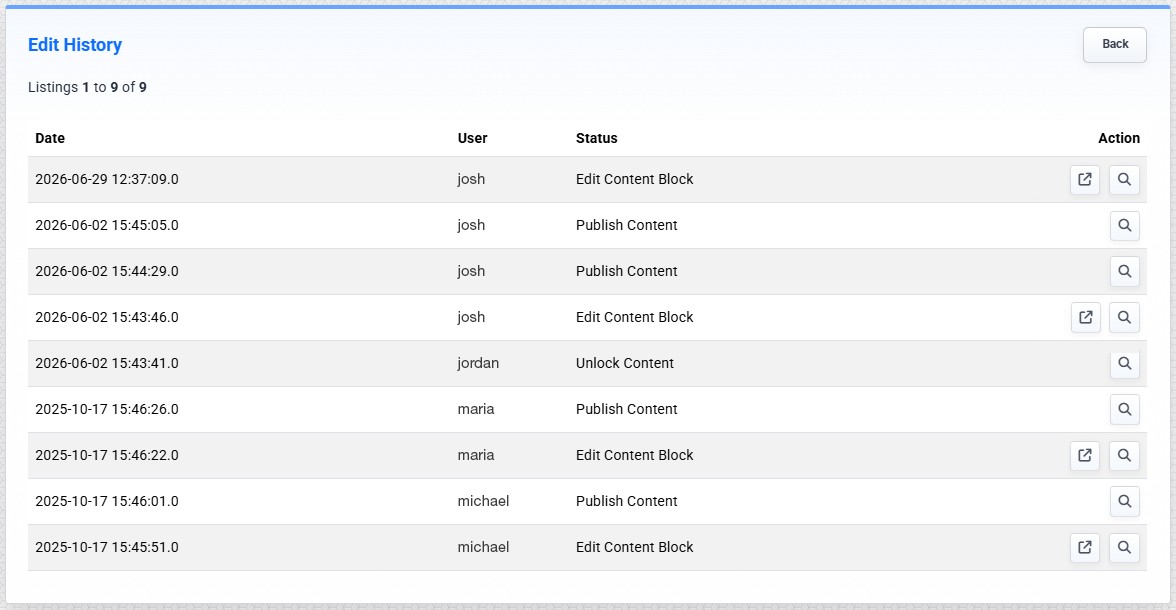
The Edit History list shows recorded actions for the selected content block.
Each row includes the date, user, status, and available actions.
Review the History List
Use the history list to scan the activity for the block.
The Detail action opens a detailed record for that history entry.
When the history entry is an edit, a Preview action may also be available. Preview opens the page in a new browser tab and shows the content as it appeared at that point in the block's history.
Review History Details
The detail view provides identifying information about the page and block, along with information about the recorded action.
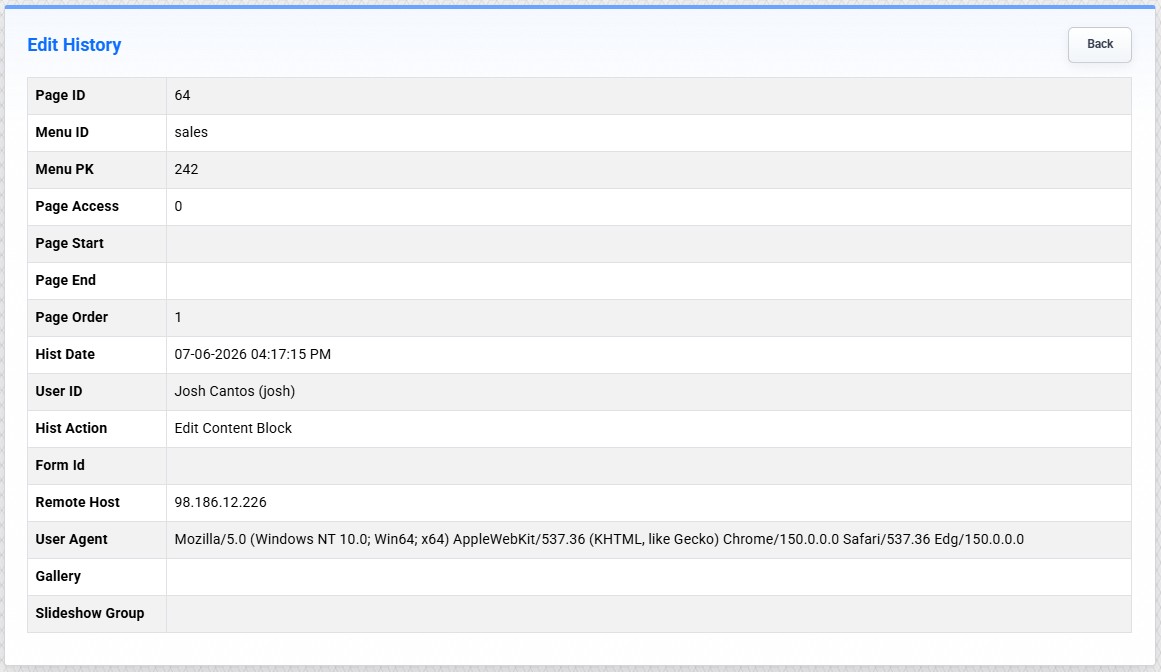
The detail view includes page, block, user, IP address, and browser information for the selected history entry.
Details can include page ID, menu ID, menu PK, page access, block type or block identifier, the history date and time, the user ID, remote host or IP address, and browser information from the user's session.
Use this view when you need more context about a specific action before deciding whether to preview or restore content.
Preview and Restore an Earlier Version
When a preview is available, open it to review the page as it appeared at that point in time.
From the preview page, a contextual menu provides options to go back to the history list, copy the content's HTML source, open the detail view, or restore the content.
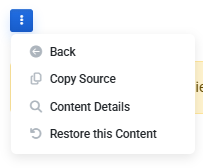
The preview page menu includes options to return to the list, copy source, view details, or restore the content.
Restoring content from Edit History adds the selected version back to the page as a new content block. It does not replace any existing content blocks.
After restoring, compare the restored block with the current block on the page. If you want to keep the restored version instead of the current version, remove the original block after confirming the restored content is correct.
How Edit History Differs from Recycle Bin
Edit History is used to review and restore earlier versions or actions for an existing content block.
The Recycle Bin is used to review and recover content that has been removed.
The workflows are similar because both can include detail, preview, source copy, and restore options. They are not interchangeable, so use Edit History when you are working with a block's recorded changes and use the Recycle Bin when content has been deleted.
Learn More
For the menu used to open Edit History, see Accessing the Content Editor. For editing regular content blocks, see Getting Started with the Content Editor. For deleted content recovery, see Restoring and Permanently Deleting Recycled Items.