 Ask Alvin (AI Chat)
Setting System Tool Permissions
System tool permissions control access to client-facing CMS system tools.
The controls you see depend on your CMS permissions. Users with restricted permissions may not be able to access all features.
To set system tool permissions:
- Open the User Manager from the System accordion.
- Find the user on the Users tab.
- Click the user's Edit button.
- Open the System Permissions tab.
- Expand the System permission group.
- Review the group-level toggles for the System group.
- Locate the tool you want to update.
- Turn the needed permission toggles on or off.
- Click Save.
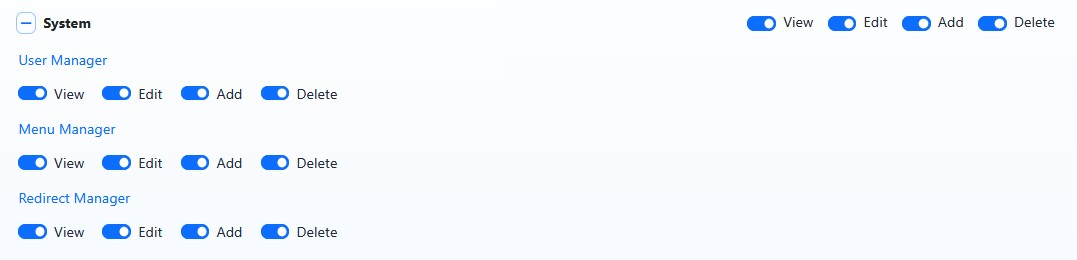
The System group includes permissions for client-facing system tools.
System Tool Permission Toggles
Client-facing system tool permissions include:
- User Manager
- Menu Manager
- Redirects Manager
Use View to allow the user to see a tool. Use Edit, Add, and Delete to control what the user can do inside that tool.
Individual system tool permissions cannot exceed the System group-level permissions. If a permission is unavailable for an individual tool, review the System group toggles first.
Important: Be careful when granting User Manager access. A user with User Manager Edit permissions or higher can affect other CMS user accounts within the limits of the permissions they have been granted.
Learn More
For more on the View, Edit, Add, and Delete settings, see Understanding System Permissions.