 Ask Alvin (AI Chat)
Setting Page Permissions for Individual Pages
Use the Page Permissions tab to control access for specific website pages.
The controls you see depend on your CMS permissions. Users with restricted permissions may not be able to access all features.
To set page permissions:
- Open the User Manager from the System accordion.
- Find the user on the Users tab.
- Click the user's Edit button.
- Open the Page Permissions tab.
- Use Search or the section selector to find the page.
- Turn Edit, Manage, or Publish on or off for the needed page.
- Click Save.
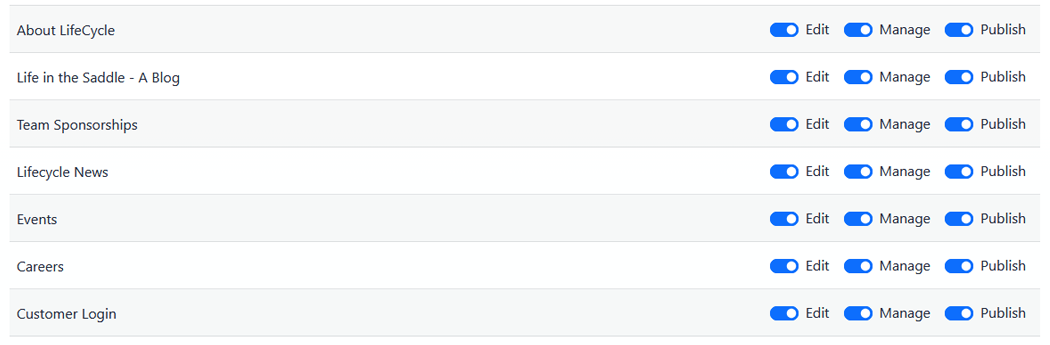
Individual page toggles control Edit, Manage, and Publish access for a specific page.
Choosing Page Permission Levels
Turn Edit off when the user should not change the content on that page at all. This is appropriate for pages the user should not maintain or pages that are managed by another person or team.
Use Edit when the user should update existing content areas but should not add, delete, reorder, or publish content areas.
Use Manage when the user should be able to add, delete, reorder, or restore content areas but should not publish changes.
Use Publish when the user should be able to publish changes.
Individual page permissions are constrained by the global toggles at the top of the Page Permissions tab and by parent page permissions when the page is nested. If a permission is unavailable for an individual page, review the global toggles and the parent page permissions first.
Learn More
For the meaning of each permission level, see Understanding Page Permissions.