 Ask Alvin (AI Chat)
Selecting, Exporting, and Deleting Redirects
Use row checkboxes and Bulk Actions to export or delete multiple redirects.
The controls you see depend on your CMS permissions. Users with restricted permissions may not be able to access all features.
Select Redirects
To select redirects, click the checkbox beside each redirect row.
After selecting one or more redirects, open Bulk Actions and choose one of the available actions.
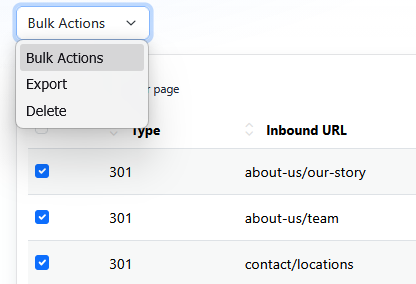
The available bulk actions are:
- Export
- Delete
Export Redirects
Export downloads the selected redirects as a .xls file. This file can be used as a backup or as a starting template for redirect import work.
Delete Redirects
Delete permanently removes the selected redirects.
To delete one redirect, click the Delete button in that redirect's Action column.

Deleting a redirect immediately stops it from resolving on the live site. There is no recycle bin or undo option for deleted redirects.
Before Importing
Before using Import, export the current redirects first. Keep the exported file as a backup and edit a copy if you plan to prepare an import spreadsheet.
Learn More
For import steps and the difference between adding and replacing redirects, see Importing Redirects.