 Ask Alvin (AI Chat)
Importing Redirects
Use Import to add redirects from a spreadsheet file or replace the current redirect list with the contents of a spreadsheet file.
The controls you see depend on your CMS permissions. Users with restricted permissions may not be able to access all features.
Before importing redirects, export the current redirect list first. The export creates a properly formatted .xls file that can be used as a backup and as a template for import.
Keep the backup unchanged. Use a copy of the exported file for your import changes.
Import File Requirements
The import file must be a .xls spreadsheet in Microsoft Excel 97-03 format. The spreadsheet must match the expected redirect column structure.
Import Steps
- Open the Redirects Manager from the System accordion.
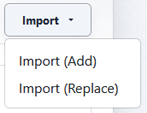
- Click the Import button.
- Choose Import (Add) or Import (Replace).
- Read the import notice.
- Check I have read the information above and would like to proceed.
- Select the
.xlsfile to import. - Click Import.
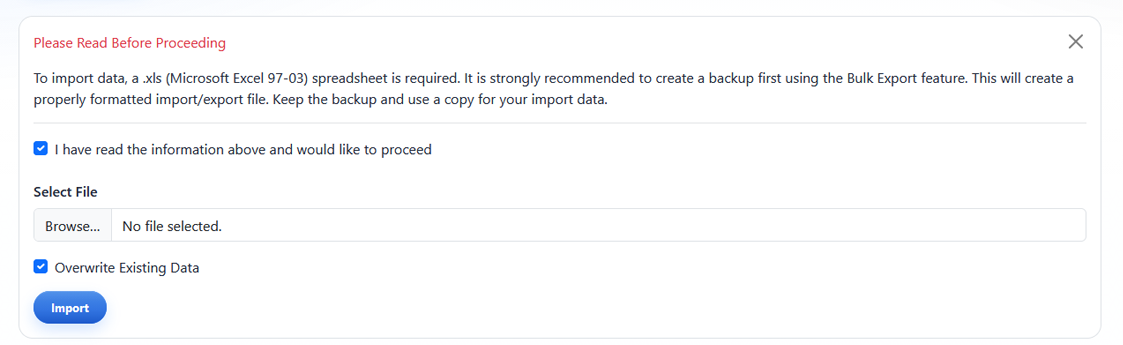
The import interface is shown after choosing an import option. The Overwrite Existing Data checkbox appears when Import (Replace) is selected.
Import Add
Import (Add) keeps existing redirects and adds redirects from the uploaded file.
Use Import (Add) when you are expanding the redirect list without replacing existing redirects.
If an imported redirect conflicts with an existing inbound URL, the import does not complete until the conflict is corrected.
Import Replace
Import (Replace) removes the existing redirect list and replaces it with the contents of the uploaded file.
Use Import (Replace) only when the uploaded file should become the complete redirect dataset.
The Overwrite Existing Data checkbox appears only when Import (Replace) is selected.
Import (Replace) has no undo. If the wrong file is imported with Replace, the previous redirect list must be restored from a backup import file.
Redirect hit counts are not reset during import unless a redirect is removed and recreated.
Learn More
For selecting and exporting redirects before import, see Selecting, Exporting, and Deleting Redirects.