 Ask Alvin (AI Chat)
Creating and Managing Permission Templates
Permission templates store reusable permission settings. Templates are useful for quickly creating new users with a predefined set of permissions.
The controls you see depend on your CMS permissions. Users with restricted permissions may not be able to access all features.
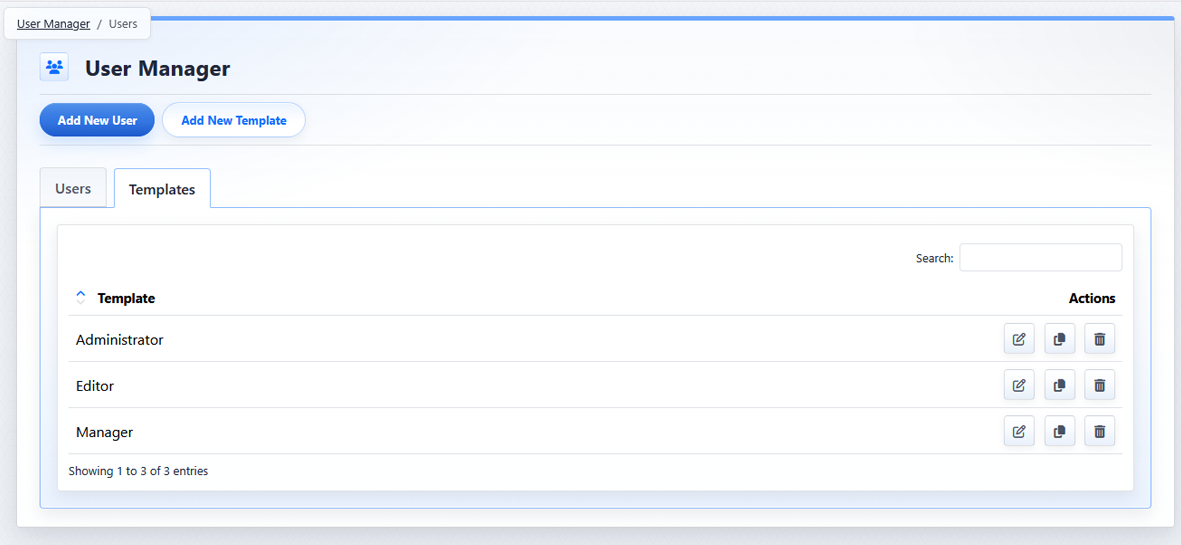
The Templates tab lists reusable permission templates.
Creating a Permission Template
To create a permission template:
- Open the User Manager from the System accordion.
- Click the Templates tab.
- Click the Add New Template button.
- Enter a Template Name.
- Configure System Permissions.
- Configure Page Permissions.
- Click Save.
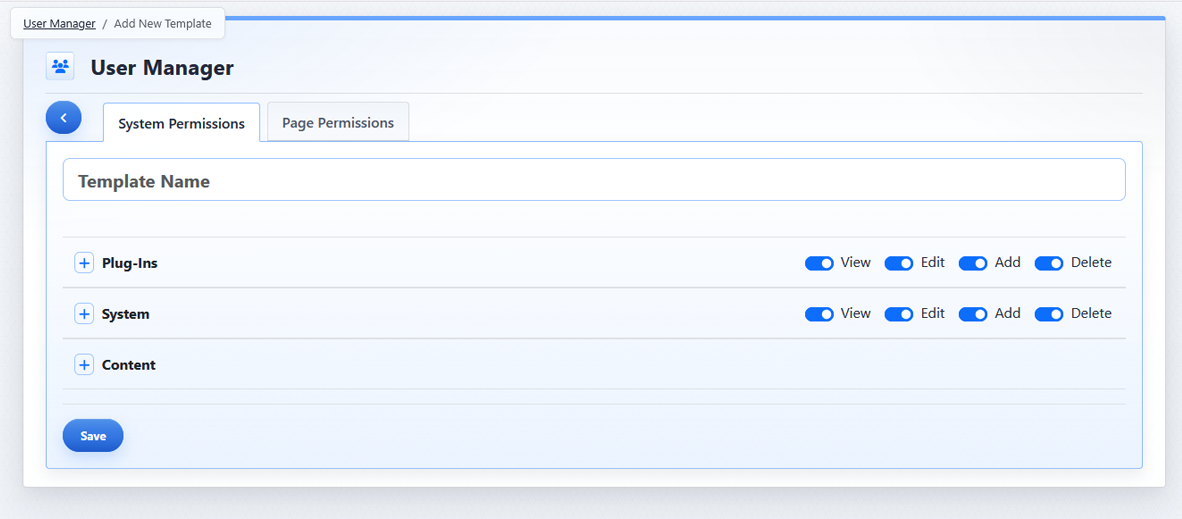
The System Permissions tab on a template works like the System Permissions tab for a user.
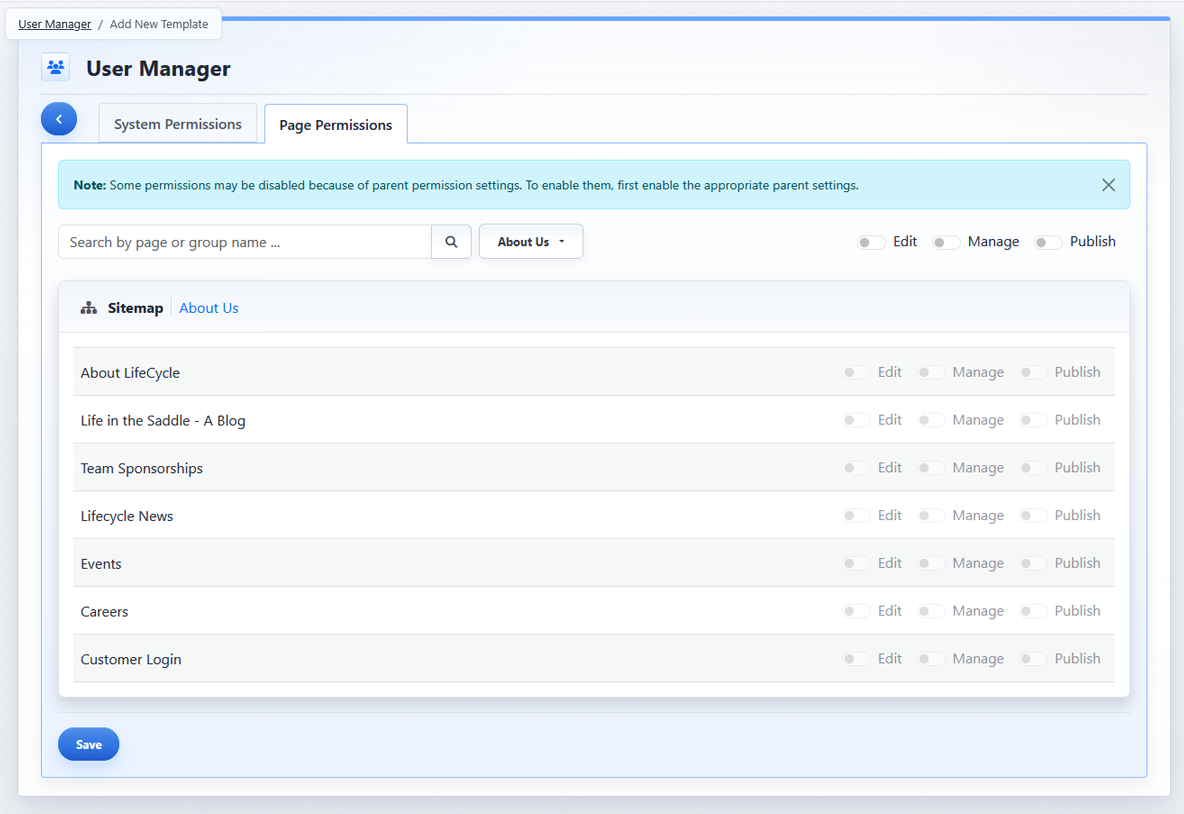
The Page Permissions tab on a template works like the Page Permissions tab for a user.
The template form includes System Permissions and Page Permissions tabs. These work like the permission tabs on an individual user, but the settings are saved as a reusable template instead of being applied to one user immediately.
Managing Permission Templates
To manage existing templates, use the action buttons in the Templates tab to edit, copy, or delete templates.

Use template row actions to edit, copy, or delete a template.
Editing a template updates the saved permission set. Editing a template does not change the permissions for users created using that template. It only affects new users created from the updated template moving forward.
Copying a template creates a new template using the selected template as a starting point.
Deleting a template removes that template from the Templates list. Deleting a template does not delete users who were previously created from it.
Learn More
For applying templates to users, see Using Permission Templates for Users.